Quick Answer (TL;DR)
Install a sleep app that keeps only the moments that matter — for example Snollo — allow the microphone, put your iPhone within about 1 meter (3 feet) of your head, tap Start before bed, and check the sleep talking events in the morning. You get short clips of what you said, with times, instead of a full night of raw audio.
Key Takeaways
- Sleep talking is common: 66.8% of adults in one survey had done it at some point, 17.7% in the previous three months. (Bjorvatn et al., Sleep Medicine)
- Voice Memos records everything; a sleep app that classifies sounds saves you from listening to 6–8 hours of audio.
- Sleep talking is often quieter than snoring — keep the phone close.
- iOS shows an orange indicator whenever an app is using the microphone, so you can always tell when recording is on. (Apple Support)
- If someone shares your room, tell them before you record.
Why Not Just Use Voice Memos?
Voice Memos works, but it gives you one long file. Sleep talking tends to come in short bursts — a few words, a mumble, a laugh — spread across the night. Finding them means scrubbing through hours of silence and breathing.
A sleep app that classifies sound as it records works the other way around: it listens all night, labels what it hears (talking, snoring, coughing, breathing) and keeps short clips of those moments. In the morning you open a timeline and tap the ones you want to hear.
How to Record Sleep Talking: 4 Steps
- Install a sleep sound app. Download Snollo from the App Store — it’s free and uses the Apple ID you already have. Allow microphone access when asked.
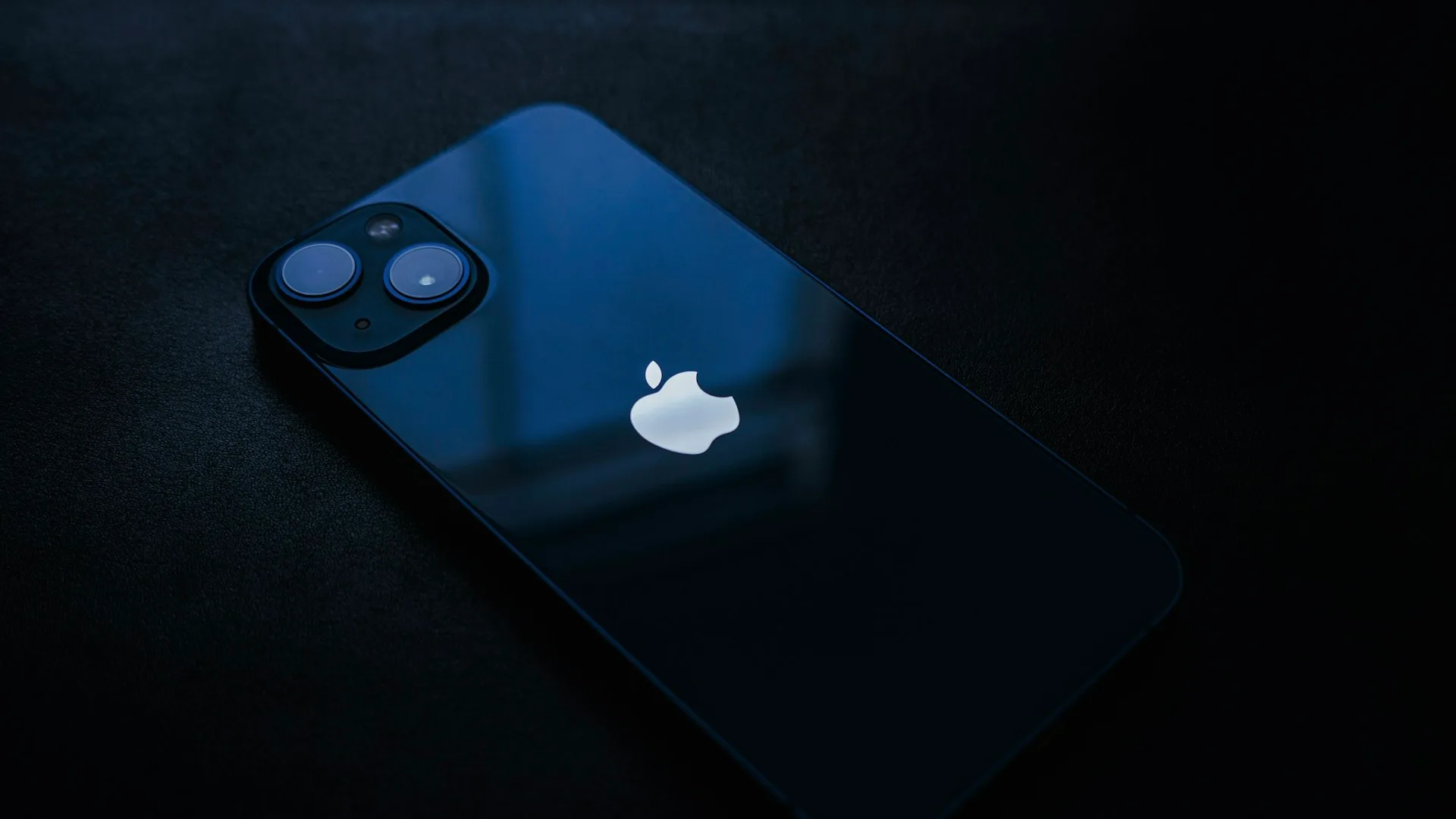
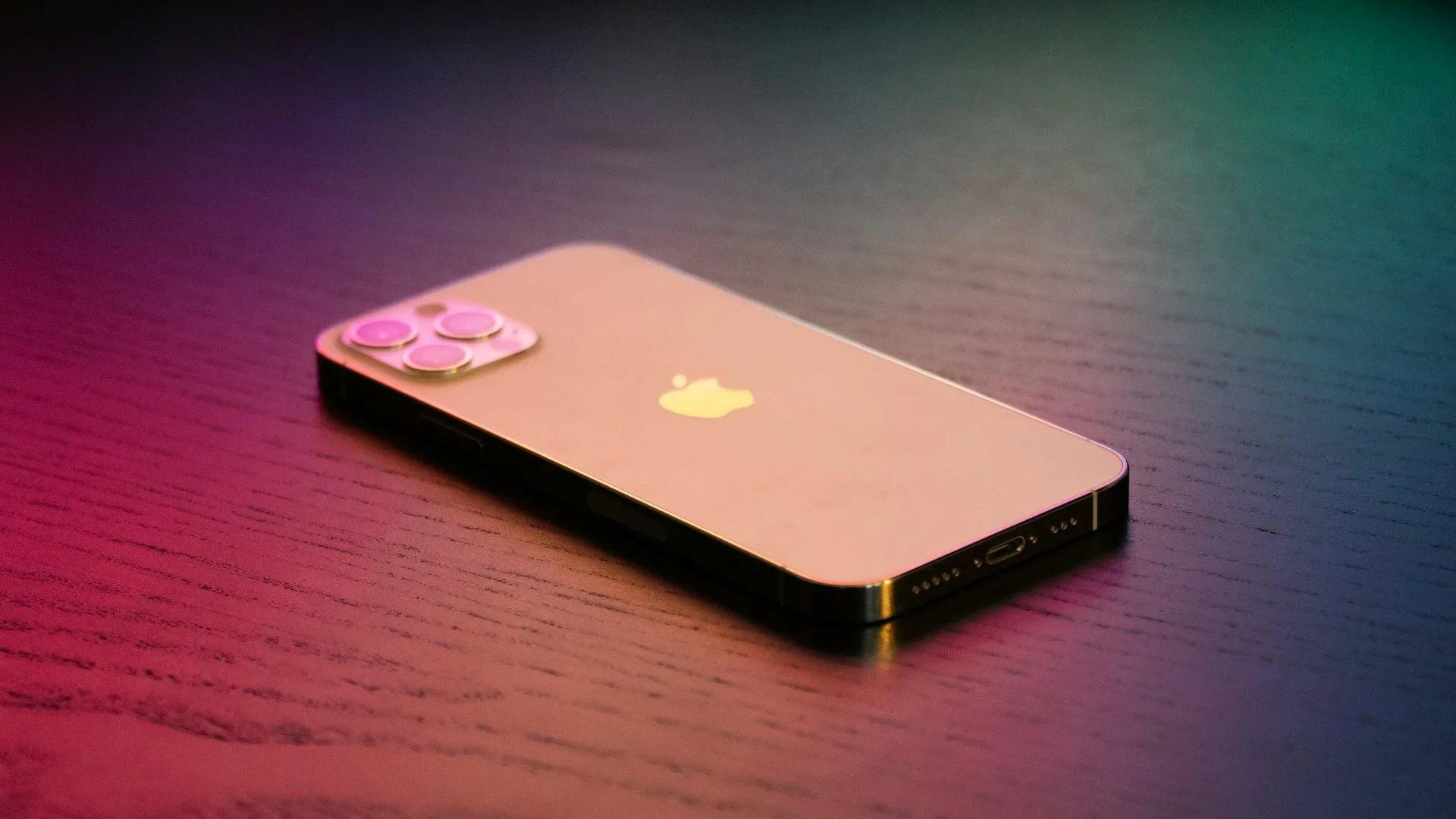
- Place your iPhone close to your head. Face-down on the nightstand, within about 1 meter (3 feet), or on the mattress next to your pillow in a case. Sleep talking is often softer than snoring, so distance matters more.
- Tap Start before you sleep. Snollo doesn’t start on its own — nothing is recorded until you tap Start. Plug in your charger; overnight listening typically uses 10–15% of the battery.
- Check the timeline in the morning. Look for sleep talking events and play back the clips. Snoring, coughing and breathing events show up on the same timeline.
Where to Put the Phone
Good:
- Face-down on the nightstand closest to your head
- On the mattress beside your pillow (in a case so it doesn’t slide)
Avoid:
- The far side of the room — quiet speech gets lost
- Under the pillow — it muffles the microphone
- Near a fan, air purifier or white-noise machine — steady noise can mask soft speech
If you want to use white noise to sleep, try placing the phone on the opposite side of your head from the noise source.
Is Sleep Talking Normal?
For most people, yes. It’s one of the most common things people do in their sleep: in a survey of 1,000 Norwegian adults, two-thirds reported sleep talking at some point in their life. (Bjorvatn et al., Sleep Medicine)
On its own, it’s usually harmless. Mention it to a doctor if it comes with:
- shouting, kicking or acting out dreams
- sleepwalking or injuries during the night
- loud snoring with pauses in breathing or gasping (try the free sleep apnea risk test as a first step)
Privacy: Who Hears the Recording?
A night of bedroom audio is personal, so it’s worth knowing where it goes. With Snollo, sound is classified on your iPhone. Raw audio is processed in memory and discarded; only the event data and the clips you choose to keep are saved, to your own iCloud under your Apple ID. You can delete any clip.
If someone shares your bedroom, their voice can end up in a recording too. Let them know before you start.
Related
- Does your iPhone record you while you sleep? — how to check which apps can use the microphone
- How to record snoring on iPhone — the same setup, with tips for snoring
Snollo is a sleep tracking app, not a medical device, and doesn’t diagnose any condition.
Sources
- Prevalence of different parasomnias in the general population — Bjorvatn B et al., Sleep Medicine, 2010
- About the orange and green indicators in your iPhone status bar — Apple Support
Sources
- Prevalence of different parasomnias in the general population — PubMed / Sleep Medicine
- About the orange and green indicators in your iPhone status bar — Apple Support